
The iPhone app is still in development and is not yet available on the App Store. We’ll share it on the roadmap and changelog once it’s ready to download. Core household workflows—including reviewing stay agreements, tracking chores, and logging or confirming contributions—are available today at kouchd.com. Native-only features like inline contribution disputes and record voiding are currently exclusive to the iOS client.
Signing in
Open the app and sign in with the same account you use on the web. You can continue with your email address or with Google. Your stays, agreements, and contribution records load automatically. If you’re new, the app shows a short introduction first. At the end, choose Create a stay if you’re hosting, or Join a stay if someone invited you.Getting around
The app has four tabs along the bottom of the screen.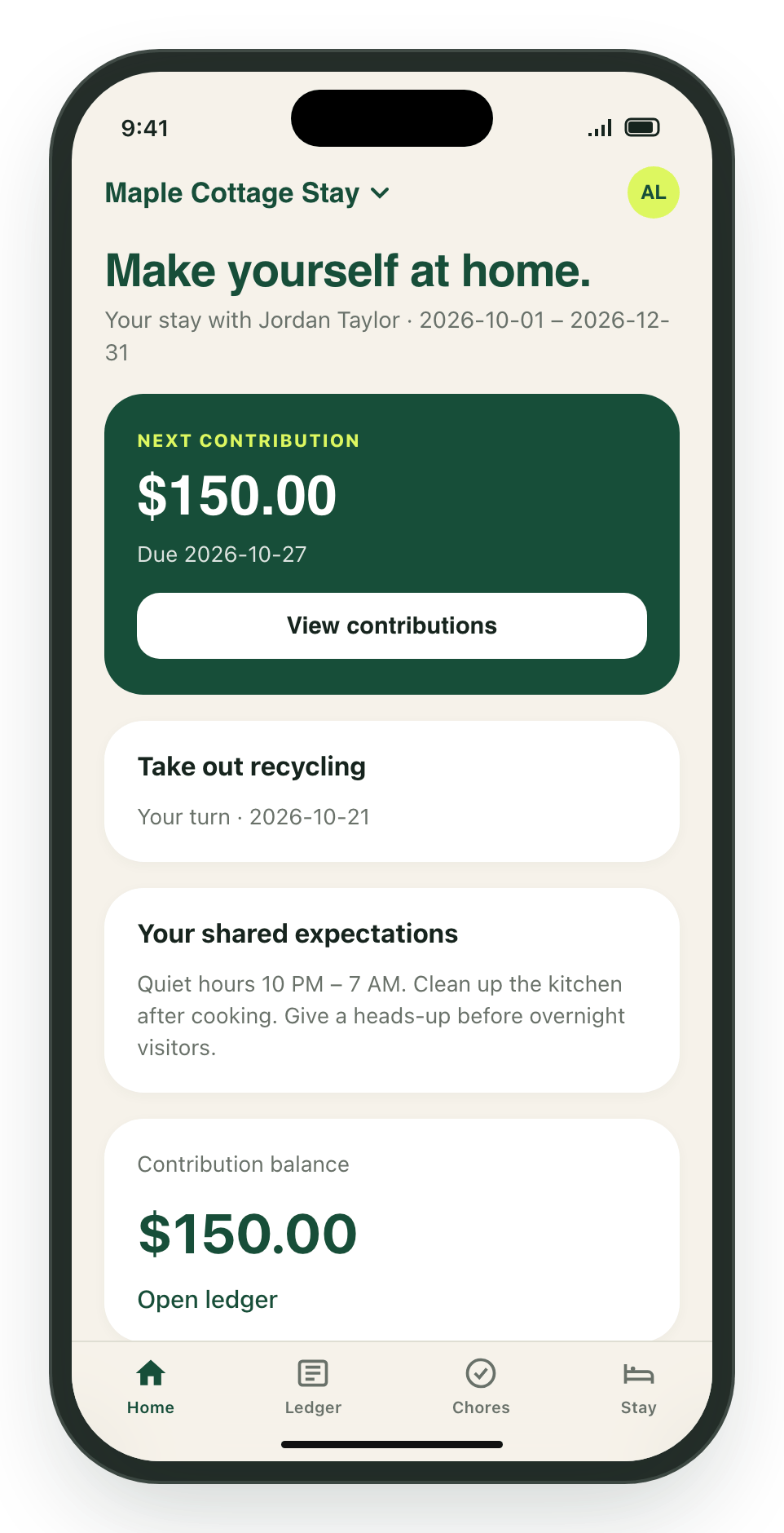
Two controls sit at the top of the screen:
- Stay name (top left): If you’re part of more than one stay, tap the name to switch between them.
- Your initials (top right): Opens Settings, where you manage your profile and reminders.
Recording a contribution
A contribution is a shared record of something you paid or provided outside Kouchd, like a payment sent by Venmo or groceries you picked up. Kouchd does not move money. The record helps everyone stay on the same page.1
Open the Ledger tab
Tap Ledger, then tap Record a contribution (or the + button at the top right).
2
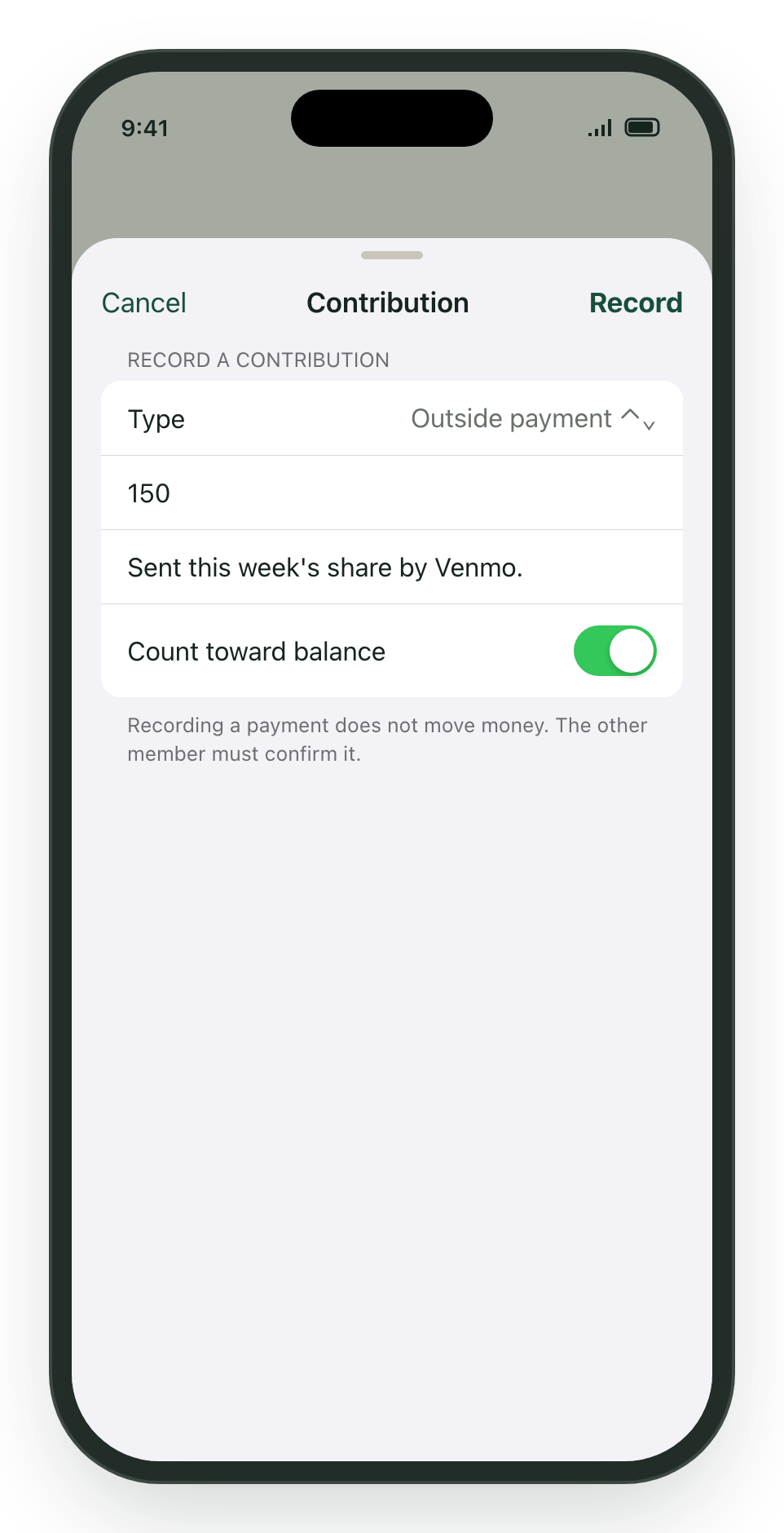
Fill in the details
Choose a Type: Outside payment, Groceries, Supplies, House work, or Other. Enter the amount in dollars and add a short note so the other person recognizes it.
3
Decide whether it counts toward the balance
Leave Count toward balance on if this should reduce what’s owed. Turn it off for things you want on record but that weren’t part of the agreed amount.
4
Tap Record
The record appears as pending with the note “Waiting for the other person to confirm.”
Confirming or disputing a contribution
When someone else records a contribution that involves you, it shows up under Contribution records in the Ledger with Confirm and Dispute buttons.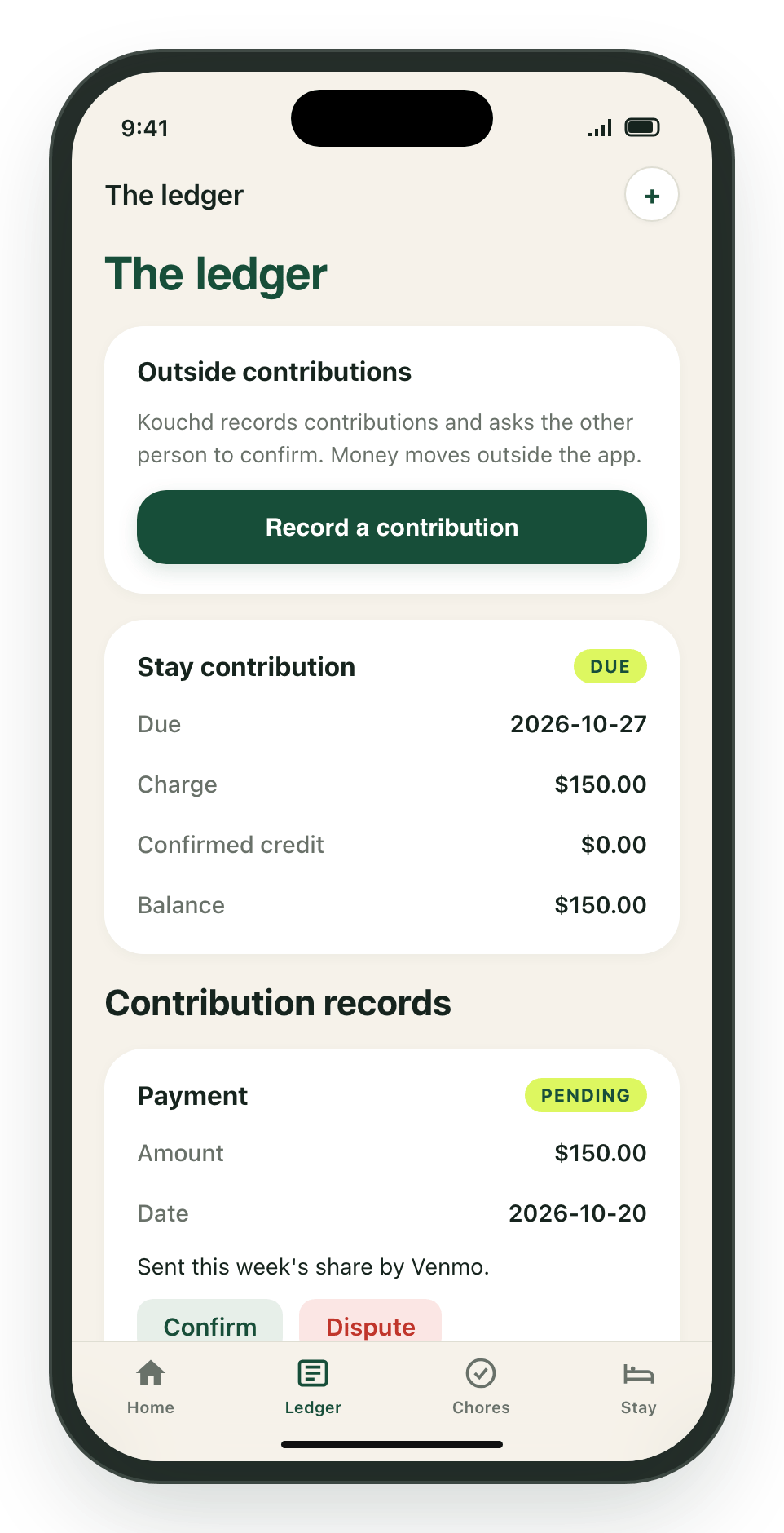
- Tap Confirm if it matches what you received. Confirmed contributions that count toward the balance are credited to your oldest outstanding charge (including an upcoming charge when earlier charges are fully covered).
- Tap Dispute if something looks off. Then talk it through with the other person. If the details were wrong, the person who recorded it (or the host) can tap Void record and record it again correctly. (On the web app, leave mismatched records unconfirmed while coordinating a re-recorded contribution.)
Chores
Tap Chores to see what needs doing. Each chore shows who it’s for (Shared, Host, or Guest) and its due date.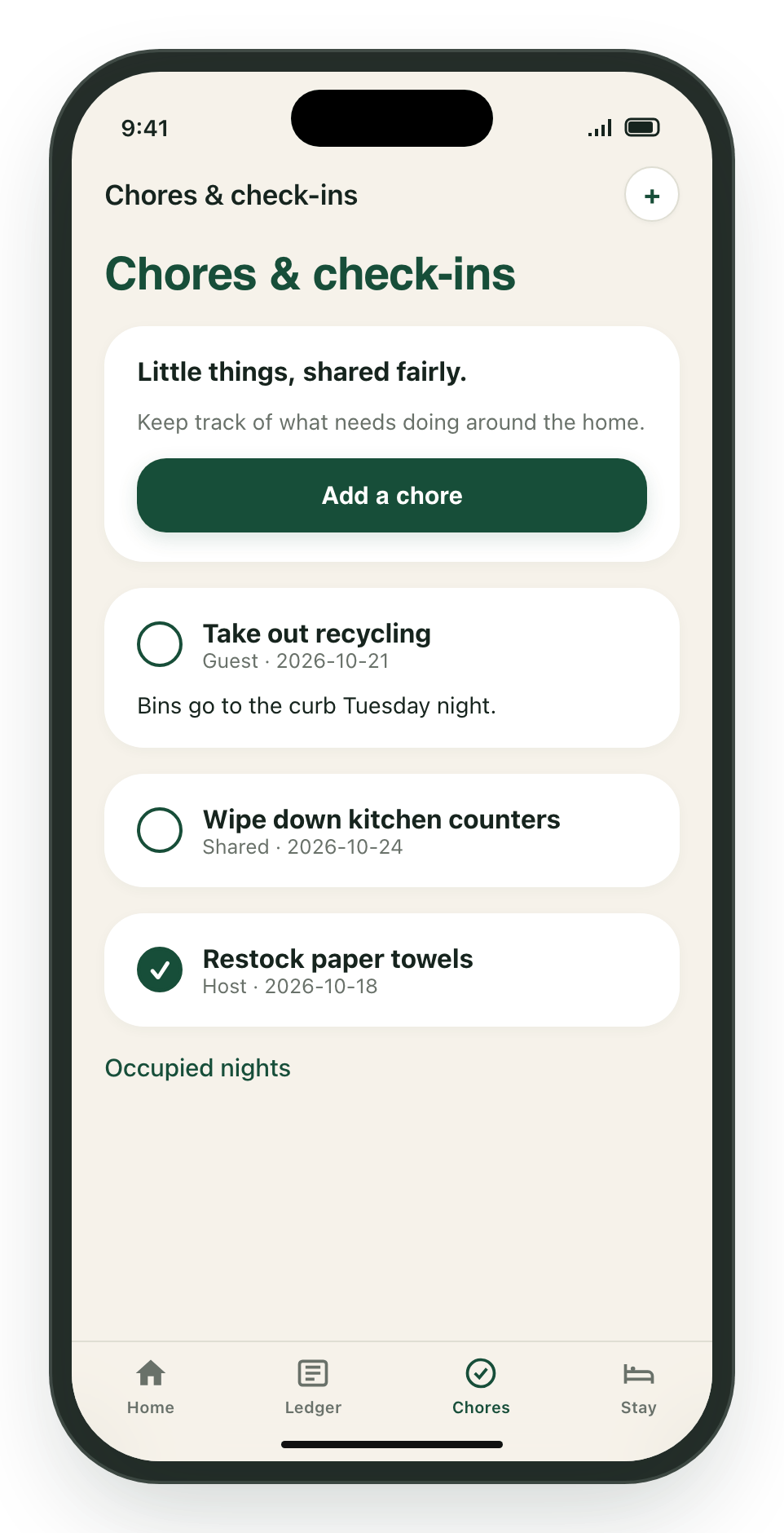
- Mark a chore done: Tap the circle next to it. Tap again to mark it incomplete.
- Add a chore: Tap Add a chore (or +), enter a name and details, choose who it’s for, pick a due date, and tap Add.
- Occupied nights: Use the link at the bottom of the Chores tab to see which nights were recorded.
Your stay
The Stay tab collects the practical details in one place.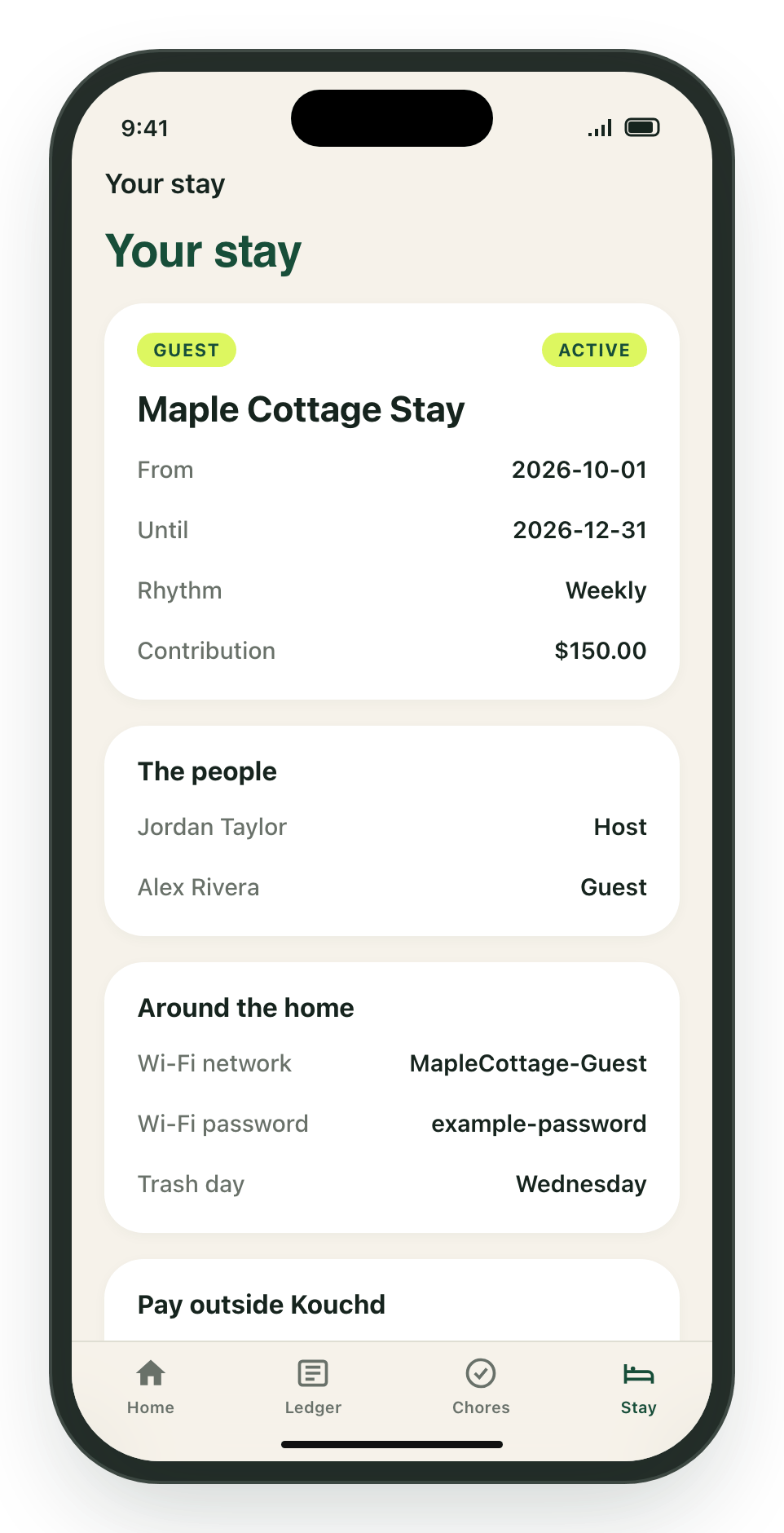
- Stay details: Dates, the contribution rhythm (daily or weekly), and the agreed amount.
- The people: Everyone in the stay and their role.
- House notes and Around the home: Wi-Fi, door code, parking, trash day, and anything else your host added.
- Pay outside Kouchd: The payment options your host shared. Pay with one of them, then record the contribution in the Ledger.
- More for your stay: Your guest agreement, schedule changes, rewards, household activity, settings, and links to create or join another stay.
Joining a stay from your iPhone
- From an invitation link: Tap the link your host sent. The app opens, asks you to sign in if needed, and shows the invitation so you can accept it.
- With a referral code: If you are new and have not joined a household yet, sign in and choose Join with a code on the welcome screen (or tap Join a stay during the introductory preview). If you are already in a stay, go to the Stay tab, tap Join another stay, enter the code, and tap Join.
Reminders
Open Settings (your initials, top right) to turn Email reminders and SMS reminders on or off. SMS reminders are optional. By turning them on, you agree to receive transactional text messages from Wrelik Brands LLC (operating Kouchd). Message and data rates may apply. Message frequency varies. Text STOP to cancel, HELP for help. Consent is not a condition of purchase or any stay agreement.Related guides
Logging contributions
How contribution records and confirmations work.
Managing the Ledger
Reviewing charges, credits, and late fees as a host.
Joining a stay
Invitations, referral codes, and your agreement.
House rules and chores
Setting shared expectations for the household.